Managing multiple applications simultaneously can be a complex task, especially when aiming to optimize system performance and troubleshoot issues efficiently. Learning how to leverage the capabilities of task manager allows users to monitor up to 20 applications with precision, ensuring smooth operation and quick problem resolution.
This guide provides detailed steps on how to identify, monitor, and manage numerous applications within task manager, offering valuable insights into resource usage, application priorities, and troubleshooting techniques to enhance your system management skills.
Overview of Task Manager and Its Role in Managing Applications
The Task Manager is a vital tool within the Windows operating system that enables users to monitor and control running applications and background processes. Its primary role is to provide real-time insights into the performance and resource utilization of multiple applications simultaneously. This utility not only aids in identifying unresponsive or resource-heavy programs but also empowers users to manage system performance effectively, ensuring smooth operation and optimal resource allocation.
Compared to other system monitors, Windows Task Manager offers a user-friendly interface with essential functionalities tailored for everyday users and IT professionals alike. While third-party system monitoring tools may provide more detailed analytics or specialized features, the Task Manager remains a core utility due to its accessibility, efficiency, and seamless integration within Windows environments.
Main Functions of Task Manager in Tracking Applications
Understanding the core functionalities of Task Manager is crucial for effective application management. The tool performs several key tasks:
- Monitoring Application Performance: It displays the current status of running applications, including CPU, memory, disk, and network usage, allowing users to assess how each program impacts system resources.
- Managing Processes and Applications: Users can end unresponsive or unnecessary applications directly from Task Manager, thereby freeing system resources and improving performance.
- Startup Program Management: The tool provides a section dedicated to startup items, enabling users to enable or disable programs that launch automatically, which can significantly speed up boot times.
- Detailed Resource Usage Reports: Task Manager offers detailed breakdowns of resource consumption per application, helping users identify which processes are causing system slowdowns or bottlenecks.
Display of Application Performance and Resource Usage
Task Manager visually presents application performance metrics through various dynamic charts and tables, facilitating quick assessment and decision-making.
Performance metrics are displayed as real-time graphs that illustrate CPU, memory, disk, and network activity, providing a clear snapshot of each application’s resource consumption.
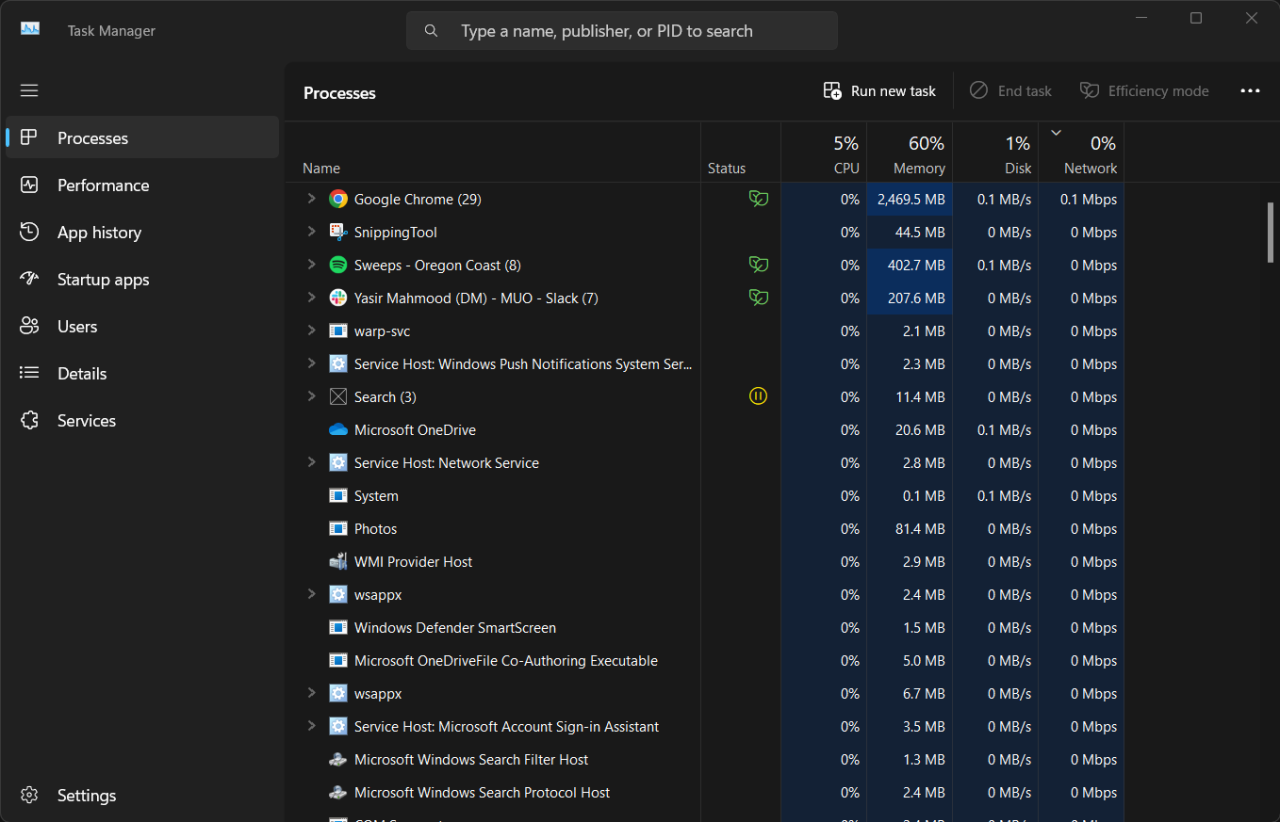
The ‘Processes’ tab categorizes applications and background processes, presenting columns for CPU, Memory, Disk, and Network usage. These metrics update continuously, allowing users to observe fluctuations and identify resource-heavy applications. For example, a video editing application might show high CPU and RAM usage during rendering, while a web browser may fluctuate based on open tabs and active downloads.
Differences Between Windows Task Manager and Other System Monitors
While Windows Task Manager is a readily accessible and straightforward utility, other system monitors often offer more advanced or specialized features. Understanding these differences enables users to select the appropriate tool for their needs:
- Depth of Data: Third-party tools like Process Explorer or HWMonitor provide more granular data, such as detailed thread information, hardware sensor readings, and process dependencies, which are not available in the default Task Manager.
- User Interface and Customization: Alternative system monitors often feature customizable dashboards, richer visualization options, and the ability to monitor remote systems, unlike the more simplified interface of Windows Task Manager.
- Integration and Compatibility: Some advanced tools integrate with system diagnostics or offer command-line interfaces for automation, whereas Task Manager primarily serves manual, user-initiated actions within Windows.
- Resource Overhead: More comprehensive tools may consume additional system resources themselves, whereas Task Manager is optimized for minimal impact on system performance.
In summary, while Windows Task Manager is ideal for quick, everyday application tracking and management, advanced users and IT professionals may prefer third-party options for deeper analysis and more detailed system insights.
Identifying and Selecting Applications to Track
Effective application management begins with accurately identifying which programs to monitor within the Task Manager. Tracking the right applications enables users to optimize system performance, troubleshoot issues efficiently, and maintain productive workflows. Selecting specific applications for monitoring involves understanding their roles, resource consumption, and operational importance.
Within Task Manager, users can list, select, and organize multiple applications, making it easier to oversee their activity. This process is essential for users who manage numerous programs daily, such as developers, IT professionals, or heavy computer users, seeking granular control over their system resources. The approaches Artikeld here facilitate the systematic identification and effective tracking of up to 20 or more applications, ensuring comprehensive oversight.
Listing Applications within Task Manager
To track multiple applications efficiently, users should first familiarize themselves with how applications appear in Task Manager. By default, Task Manager displays a list of running processes, which may include background services, system processes, and user-initiated programs. Users can view applications grouped under the ‘Apps’ section for easier identification.
Methods to list applications include:
- Open Task Manager by pressing Ctrl + Shift + Esc or right-clicking the taskbar and selecting Task Manager.
- Navigate to the Processes tab, where active applications and background processes are displayed.
- Identify foreground applications under the Apps section for quick access.
- For comprehensive viewing, switch to the Details tab, which provides detailed process names and IDs.
This approach helps compile a list of up to 20 applications, especially when multiple programs are actively running simultaneously, such as web browsers, document editors, communication tools, and media players.
Creating an Organized Application Table
Organizing applications into categories enhances tracking clarity and resource management. Establishing a structured table allows users to quickly assess application roles and prioritize monitoring efforts. Categories typically include productivity, communication, media, system utilities, and development tools, among others.
Below is an example of an organized table classification:
| Application Name | Category | Description |
|---|---|---|
| Microsoft Word | Productivity | Word processing application for document creation and editing. |
| Google Chrome | Web Browser | Popular internet browser used for web navigation and extension support. |
| Slack | Communication | Team messaging platform facilitating real-time communication and collaboration. |
| Spotify | Media | Music streaming application for media playback and playlist management. |
| Zoom | Communication | Video conferencing tool for remote meetings and webinars. |
| Adobe Photoshop | Media/Design | Image editing software used for graphic design and photo retouching. |
| Visual Studio Code | Development | Source-code editor favored by developers for programming tasks. |
| Dropbox | Cloud Storage | File synchronization and storage service for backup and sharing. |
This organized structure allows users to quickly identify applications of interest and focus monitoring efforts accordingly, facilitating efficient resource allocation and system management.
Filtering and Sorting Applications by Resource Usage
Task Manager provides powerful filtering and sorting options to analyze application resource consumption effectively. This functionality enables users to identify which applications are demanding the most CPU, memory, or disk resources, essential for performance troubleshooting and optimization.
To filter or sort applications based on resource usage:
- Access the Processes tab in Task Manager.
- Click on the column headers such as CPU, Memory, or Disk to sort applications in ascending or descending order by their resource consumption.
- Clicking again reverses the sort order, helping to pinpoint the highest resource-consuming applications at a glance.
- For more detailed analysis, use the Details tab, right-click on column headers, and select specific metrics like CPU Time or IO Reads/Writes.
- Employ the Filter feature (available in some versions or through third-party tools) to display only processes matching specific criteria, such as high CPU usage over 50% or memory consumption exceeding 100 MB.
Regularly filtering and sorting applications allow system administrators and users to prioritize management efforts, such as terminating unnecessary resource-heavy applications or adjusting system configurations to improve overall performance.
Monitoring Application Performance
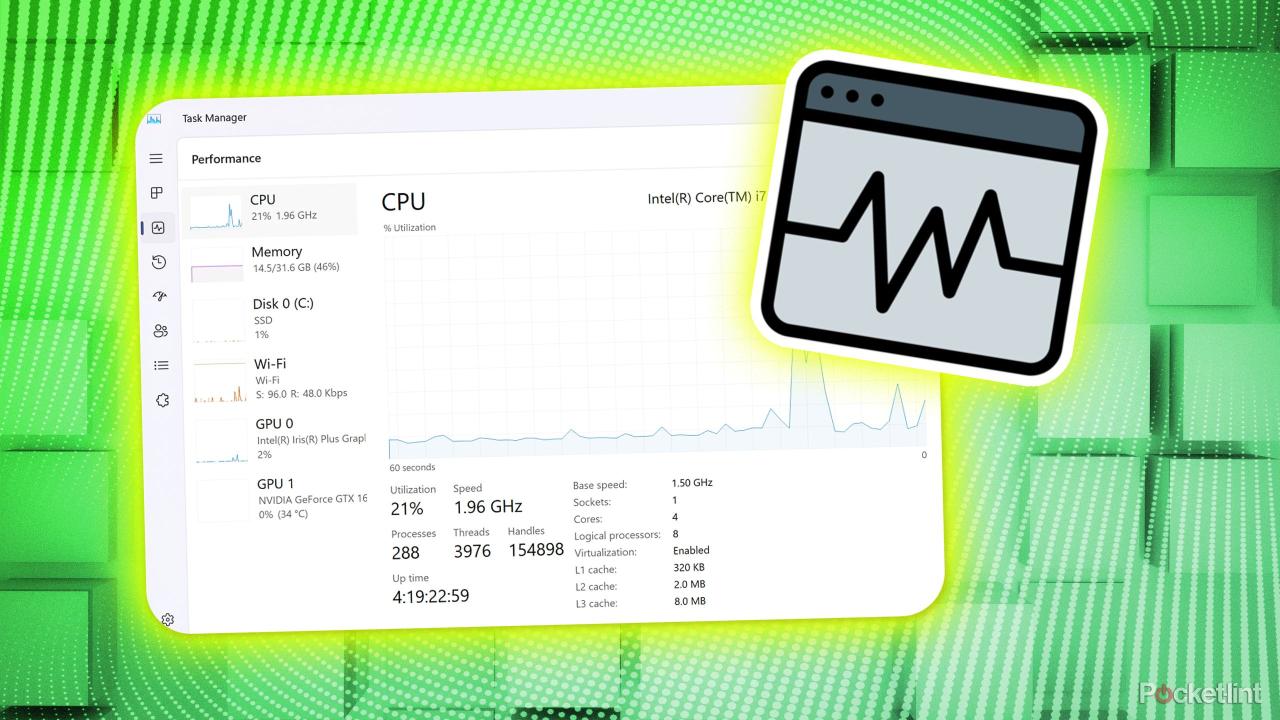
Effectively monitoring the performance of multiple applications simultaneously is essential for maintaining optimal system operation and ensuring that all applications function within acceptable parameters. Task Manager provides real-time data that allows users to observe how each application utilizes system resources, enabling proactive management and troubleshooting. By understanding how to interpret this data and customize views, users can efficiently oversee up to 20 applications and ensure system stability.
Interpreting real-time data across numerous applications requires familiarity with key metrics such as CPU usage, memory consumption, and network activity. Recognizing patterns and anomalies helps identify applications that may be overusing resources or experiencing issues. Customizing columns further enhances monitoring by focusing on specific metrics relevant to each application’s performance, providing a tailored and insightful overview.
Interpreting Real-Time Application Data
To monitor multiple applications effectively, it is crucial to understand the significance of each system metric displayed in Task Manager. CPU usage indicates how much processing power an application consumes at any given moment, with consistent high usage potentially signaling a performance bottleneck or inefficient process. Memory usage reflects the amount of RAM an application is occupying, where excessive memory consumption might lead to system slowdowns or crashes.
Network activity shows the extent of data transmitted and received by applications, which is particularly important for applications relying on internet connectivity. Monitoring these metrics in real-time enables users to quickly identify resource-heavy applications that could impact overall system performance or network bandwidth.
Customizing Columns for Focused Monitoring
Task Manager allows users to customize which metrics are displayed, facilitating targeted monitoring of applications based on specific performance indicators. Customization involves selecting columns relevant to the current troubleshooting or monitoring task, such as CPU percentage, memory usage, disk activity, and network throughput.
- Open Task Manager and navigate to the ‘Details’ or ‘Processes’ tab.
- Right-click on any existing column header to access the context menu.
- Select ‘Select Columns’ to view a list of available metrics.
- Choose the specific columns you wish to display, such as ‘CPU’, ‘Memory’, ‘Network’, or ‘Disk I/O’.
- Click ‘OK’ to apply changes, ensuring the new columns are visible for real-time tracking.
Custom columns enable users to track designated performance metrics for each application, making it easier to analyze resource utilization without information overload. This tailored approach provides a clearer picture of how each application impacts system health.
Example Table of Application Performance Metrics
The following table illustrates how you can organize and view performance data for multiple applications, focusing on CPU, memory, and network usage. This example demonstrates a clear comparison of resource consumption across different applications, aiding in quick assessment and decision-making.
| Application Name | CPU Usage (%) | Memory Usage (MB) | Network Usage (KB/s) |
|---|---|---|---|
| Chrome Browser | 45 | 1200 | 350 |
| Microsoft Word | 10 | 600 | 50 |
| Slack | 25 | 300 | 150 |
| Spotify | 5 | 150 | 80 |
| Adobe Photoshop | 70 | 2500 | 200 |
Consistently high CPU or memory usage values may indicate an application is under stress or malfunctioning. Monitoring network activity helps identify bandwidth-heavy applications that could affect overall network performance.
Using Task Manager for Troubleshooting Applications
Effective troubleshooting of applications is essential for maintaining optimal system performance and ensuring a smooth user experience. Task Manager serves as a critical tool in this process by allowing users to quickly identify problematic applications, assess their impact on system resources, and take appropriate actions to resolve issues.
By leveraging Task Manager’s capabilities, users can pinpoint applications that are unresponsive or consuming excessive resources, facilitating timely interventions such as terminating or restarting applications safely. This proactive approach helps prevent system slowdowns, crashes, and potential data loss, ensuring the stability and efficiency of your computing environment.
Identifying Unresponsive or High-Resource-Consuming Applications
Monitoring application performance through Task Manager involves observing real-time data on CPU, memory, disk, and network usage. Applications that are unresponsive often appear as “Not Responding” in the Status column, signaling that they are frozen or malfunctioning. Similarly, applications with abnormally high resource consumption can be identified by examining the resource columns.
In scenarios where an application becomes unresponsive, or if it consumes an excessive amount of system resources, it may cause other processes to slow down or freeze. Recognizing these signs promptly allows users to take corrective actions to restore system stability without requiring a full system restart.
For example, if a web browser like Chrome suddenly spikes CPU usage to 90% and ceases to respond, it can be identified quickly in Task Manager, enabling targeted troubleshooting without impacting other running applications.
Terminating or Restarting Applications Safely via Task Manager
When applications become unresponsive or problematic, Task Manager provides a straightforward method to terminate or restart them safely. This process involves a few critical steps to prevent data loss and ensure proper closure of applications.
To terminate an application safely, select the application from the Processes tab, then click the “End Task” button. Before doing so, confirm that closing the application will not lead to unsaved data loss, especially for productivity software like Word or Excel. For applications that require a restart, it’s prudent to close the application normally if possible, or use the “Restart” option if available, to reset the application state effectively.
In cases where an application refuses to close, Task Manager may be used to force termination, but this should be a last resort after attempting standard closure methods. Always ensure that critical data is saved beforehand to avoid unintended loss.
“Ending an unresponsive application through Task Manager is a quick remedy, but it’s crucial to evaluate the impact on unsaved work before proceeding.”
Common Troubleshooting Actions for 20 Applications
When troubleshooting applications, a set of standard actions can be applied to address common issues. These actions include detecting unresponsiveness, managing resource utilization, and performing safe restarts or force closures. Below is a list of typical troubleshooting steps effective across a range of applications:
- Identify high CPU or memory usage and determine if it is justified or abnormal.
- Terminate unresponsive applications to restore system stability.
- Restart applications after a crash or freeze to reset their state.
- Close background processes related to the application that may be causing conflicts.
- Check for multiple instances of the same application causing resource contention.
- End tasks for applications that are consuming excessive disk I/O, leading to slowdowns.
- Use the “End Process Tree” option to close all related processes for a comprehensive shutdown.
- Monitor network activity related to specific applications to identify abnormal data transfers.
- Update or reinstall applications if issues persist after troubleshooting.
- Disable startup processes related to applications causing startup delays.
- Clear cache or temporary files associated with the application to resolve performance issues.
- Check for software or driver conflicts that may affect application performance.
- Use built-in repair options or troubleshooters provided by the application vendor.
- Scan for malware or viruses if unexpected behavior is observed.
- Review application logs or crash reports for insights into recurring issues.
- Adjust application settings to optimize performance or resource consumption.
- Schedule regular maintenance tasks such as disk cleanup or defragmentation.
- Ensure system drivers and Windows updates are current to support application stability.
- Consult application-specific troubleshooting guides for advanced solutions.
- Document persistent issues and escalate to technical support if necessary.
Automating Application Tracking and Alerts
Efficient management of multiple applications often requires automation to ensure timely detection of issues and maintain optimal performance. Leveraging task manager features, scripting, and alert systems allows for proactive monitoring, reducing manual oversight and minimizing downtime. Establishing automated tracking not only enhances operational efficiency but also ensures swift response to application anomalies.
By integrating automation strategies, system administrators can set up real-time notifications and alerts that promptly inform relevant personnel about critical issues such as crashes, high resource consumption, or unresponsiveness. These proactive measures facilitate faster troubleshooting, improve overall system stability, and help maintain seamless application performance across diverse environments.
Strategies for Automating Application Monitoring and Alerts
Implementing automation involves configuring task manager features or utilizing scripting solutions to monitor multiple applications simultaneously. These strategies include setting up scheduled tasks, utilizing performance counters, scripting with PowerShell or other automation tools, and integrating alert systems that respond to predefined thresholds or events.
For example, scripts can be written to periodically check CPU and memory usage of specific applications, log the data, and trigger alerts when resource utilization exceeds acceptable limits. Using built-in task scheduler functions or third-party monitoring tools, administrators can automate these processes, ensuring continuous oversight without manual intervention.
Examples of Notifications and Alerts for Application Issues
Effective alerting mechanisms should notify administrators promptly about application health and performance concerns. These notifications can take various forms, including email alerts, SMS messages, or integration with incident management platforms. Examples include:
- An email alert indicating that a database server application has crashed or become unresponsive.
- A SMS notification warning that a web server exceeds its CPU utilization threshold, risking downtime.
- Automated logs indicating that a critical process has stopped, prompting immediate investigation.
- Pop-up alerts within a monitoring dashboard signaling high memory usage or application hangs.
Designing alert systems that are timely and informative significantly reduces resolution times and improves system reliability.
Automation Settings for Application Monitoring
To facilitate systematic automation, a well-structured configuration table can help define monitoring parameters and alert triggers for various applications. Below is a simplified example:
| Application | Monitoring Metric | Threshold | Monitoring Frequency | Notification Method | Action on Threshold Breach |
|---|---|---|---|---|---|
| Database Server | CPU Usage | Above 85% | Every 5 minutes | Send alert and restart service | |
| Web Application | Response Time | Exceeds 2 seconds | Every 10 minutes | SMS | Trigger failover protocol |
| File Server | Disk Space | Below 10% free space | Hourly | Send warning and initiate cleanup script | |
| Authentication Service | Uptime | 99.9% availability | Daily | Dashboard alert | Schedule restart or investigate logs |
Exporting and Reporting Application Data
Efficient management of multiple applications via Task Manager involves not only monitoring their real-time performance but also generating comprehensive reports for analysis and record-keeping. Exporting application data allows administrators and users to review historical performance, identify trends, and make informed decisions regarding application management and troubleshooting. Proper reporting tools facilitate a deeper understanding of application behaviors over time, helping optimize system operations and address recurring issues effectively.
By leveraging export functionalities and report generation options within Task Manager, users can maintain detailed records, prepare presentations, or share insights with relevant stakeholders. The ability to systematically organize and analyze application data transforms raw performance metrics into actionable intelligence, enhancing overall system management strategies.
Exporting Application Data
Exporting data from Task Manager involves saving detailed information about multiple applications into external files for further analysis. This process is essential when handling large volumes of data across numerous applications, facilitating easier review and comparison. Typically, Task Manager allows users to copy current data views directly or export detailed reports in various formats such as CSV, Excel, or XML files, depending on the version and tools used.
To export data, users should select the desired application metrics—such as CPU usage, memory consumption, disk activity, and network activity—and use the built-in export options or copy-paste functionalities. This exported data can then be stored securely, shared, or imported into specialized analysis tools for more advanced reporting.
Generating Reports on Application Usage
Creating reports on application usage over time offers invaluable insights into application performance, resource consumption, and stability. These reports can be generated manually or automated via scheduling tools and scripts. Reporting options include generating summaries of application activity, identifying peak usage periods, and spotting patterns indicative of potential issues or optimization opportunities.
Tools such as Windows Performance Monitor or third-party reporting software integrate with Task Manager data, allowing users to produce visual dashboards, trend graphs, and detailed logs. These reports serve as foundational documentation for capacity planning, troubleshooting, or auditing system performance in enterprise environments.
Sample HTML Table Layout for Exported Data
Organizing exported application data into structured tables enhances clarity and accessibility. Below is a sample layout for an HTML table designed to present key metrics across multiple applications systematically:
<table border=”1″ cellpadding=”5″ cellspacing=”0″> <thead> <tr> <th>Application Name</th> <th>Process ID</th> <th>CPU Usage (%)</th> <th>Memory Usage (MB)</th> <th>Disk Read/Write (MB/s)</th> <th>Network Usage (MB)</th> <th>Timestamp</th> </tr> </thead> <tbody> <tr> <td>Chrome</td> <td>1024</td> <td>12.5</td> <td>250</td> <td>0.5/0.3</td> <td>1.2</td> <td>2024-04-27 10:23:45</td> </tr> <tr> <td>Photoshop</td> <td>2048</td> <td>8.7</td> <td>320</td> <td>0.2/0.4</td> <td>0.9</td> <td>2024-04-27 10:24:10</td> </tr> </tbody> </table>
This structured layout allows for easy comparison across applications and timeframes, facilitating quick identification of anomalies or resource bottlenecks. Exported data formatted into such tables can be further embedded into reports, shared via email, or imported into analytics tools for advanced visualization.
Best Practices for Managing Multiple Applications

Effectively managing and tracking multiple applications simultaneously requires strategic planning and disciplined execution. When overseeing 20 applications within Task Manager, adopting well-structured best practices ensures system stability, improves performance monitoring, and facilitates prompt troubleshooting. This section provides guidance on streamlining application management to maximize efficiency and maintain optimal system operation.Managing numerous applications concurrently can become complex, especially as resource demands vary.
Implementing standardized procedures, prioritizing critical applications, and leveraging automation tools can significantly enhance oversight. These practices help prevent system overload, enable quick identification of issues, and ensure that essential applications receive the attention they require.
Methods for Efficient Tracking of Multiple Applications
Achieving efficient tracking involves using systematic approaches that minimize manual effort while maximizing visibility into application performance and resource consumption. Consider incorporating the following methods:
- Utilize Custom Views and Filters: Leverage Task Manager’s custom filtering capabilities to group applications based on categories such as CPU usage, memory consumption, or application type. This allows for quick identification of high-resource applications without sifting through all processes.
- Implement Monitoring Templates: Create templates for different application groups, enabling consistent tracking parameters across similar applications. For instance, web browsers, productivity tools, and background services can each have tailored monitoring views.
- Schedule Regular Review Intervals: Establish periodic review schedules to assess application performance, resource utilization, and stability. Consistent checks help identify trends and anomalies early, allowing proactive management.
- Use Automated Scripts and Tools: Integrate scripts or third-party monitoring tools that can automatically compile application data and generate reports. Automation reduces manual oversight and provides real-time alerts for critical changes.
- Maintain an Application Inventory Log: Document all tracked applications, their typical resource footprints, and criticality levels. This database simplifies updates and ensures consistency in monitoring practices.
Prioritizing Applications Based on Importance and Resource Demands
Prioritization ensures that resources are allocated efficiently, focusing on applications that are vital to operations while managing less critical tasks accordingly. Proper ranking involves assessing each application’s importance to business functions and its typical resource consumption patterns.
- Identify Critical Applications: Determine which applications are crucial for core business processes, such as ERP systems, communication platforms, or data management tools. These should always receive priority in monitoring and resource allocation.
- Evaluate Resource Demands: Analyze historical data to recognize applications with high CPU, memory, or disk usage. High-demand applications require more vigilant tracking to prevent system overloads.
- Set Priority Levels: Assign priority levels (e.g., high, medium, low) to applications based on their criticality and resource needs. Use these levels to guide monitoring intensity and troubleshooting efforts.
- Implement Resource Allocation Policies: Allocate system resources dynamically based on application priorities, ensuring essential applications have sufficient CPU and memory access during peak times.
- Adjust Priorities as Business Needs Evolve: Regularly review application importance in relation to changing organizational goals or operational shifts, updating prioritization schemes accordingly.
Tips for Maintaining System Stability During Intensive Application Management
Managing multiple applications can strain system resources, potentially leading to instability. Implementing specific tips helps maintain a balance between effective tracking and system health:
“Consistent system monitoring and resource management are vital to prevent performance degradation during intensive application oversight.”
- Limit Background Processes: Disable unnecessary background services that do not contribute to current management tasks to free up CPU and memory resources.
- Schedule Off-Peak Monitoring: Conduct intensive tracking and troubleshooting during system off-peak hours to minimize impact on user productivity.
- Set Threshold Alerts: Configure alerts within Task Manager or supplementary tools to notify when applications exceed predefined resource thresholds, enabling quick intervention.
- Maintain Adequate Hardware Resources: Ensure the system has sufficient RAM, CPU capacity, and disk space to handle simultaneous application tracking without performance drops.
- Implement System Cleanup Routines: Regularly perform disk cleanup, defragmentation, and malware scans to ensure system health and responsiveness during management activities.
- Use Resource Limits on Non-Essential Applications: Apply limits to less critical applications to prevent them from consuming excessive resources that could destabilize the system.
Final Conclusion
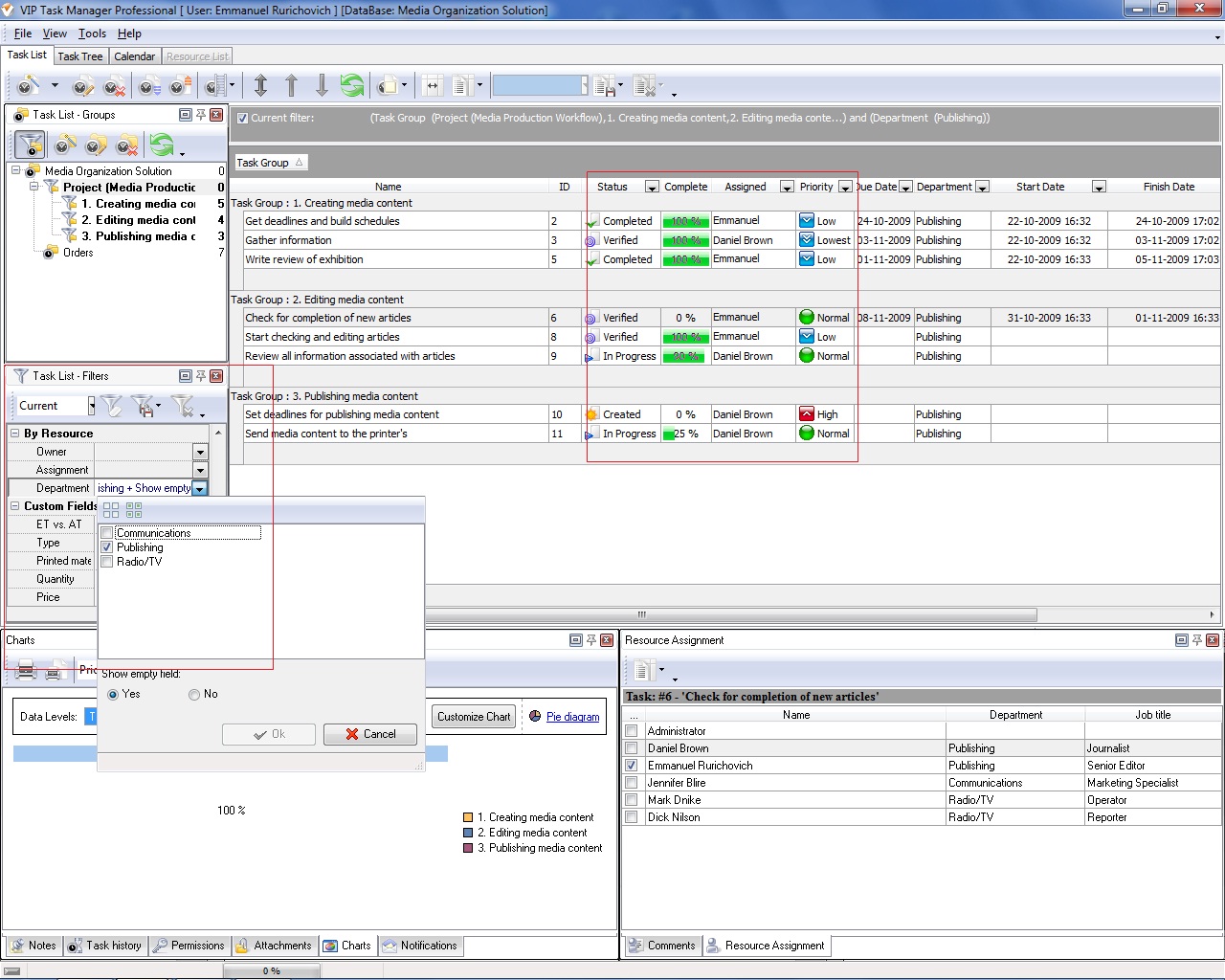
Mastering the use of task manager to track multiple applications empowers users to maintain system stability, optimize resource allocation, and quickly address any application-related issues. By implementing these strategies, you can ensure a more efficient and controlled computing environment.